The stampede desktop app for Mac and Windows: why we built it
Summary
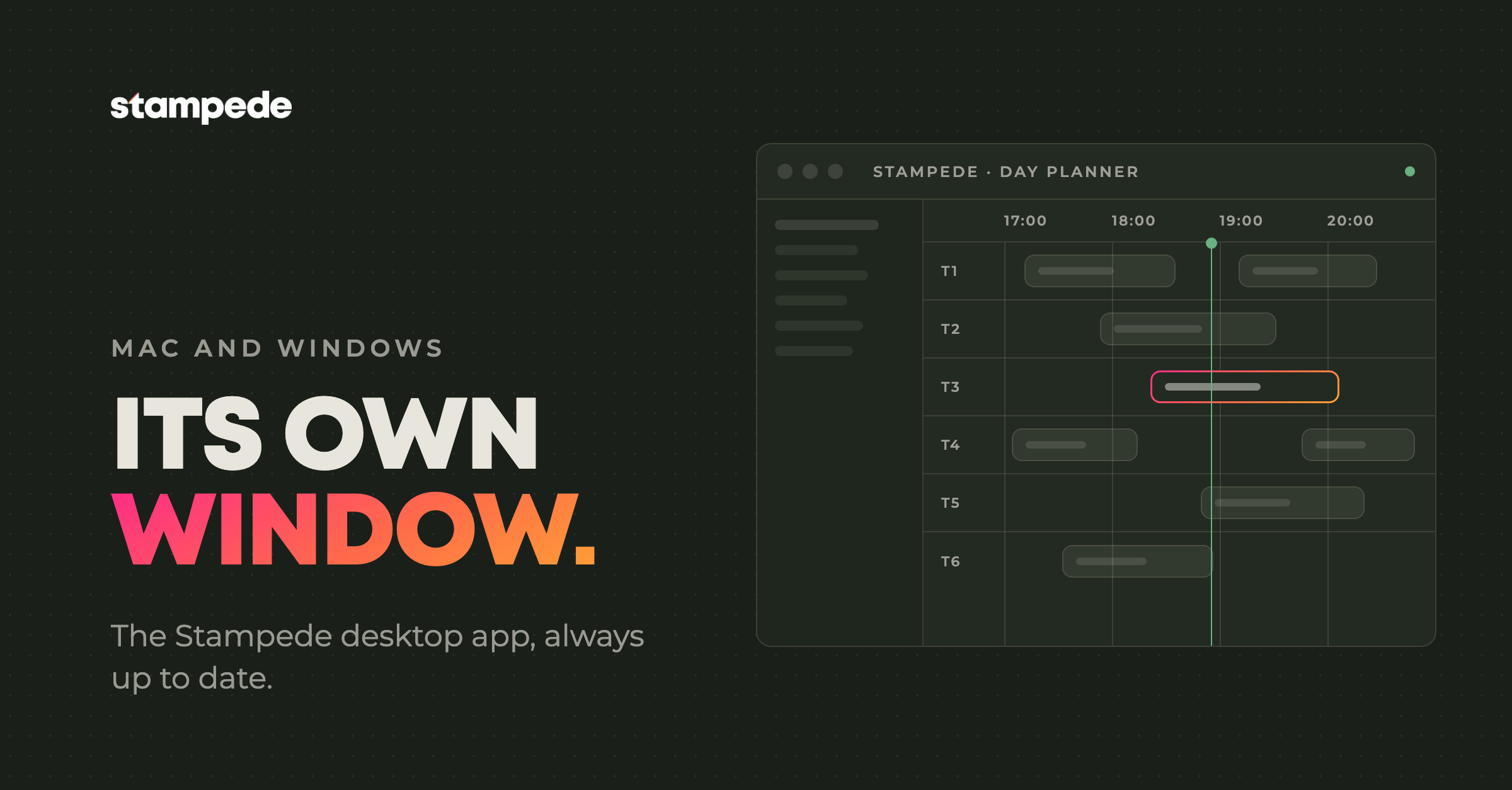
The free Stampede desktop app for Mac and Windows keeps Stampede in its own window, always up to date and locked to Stampede pages.
The Stampede desktop app puts Stampede in its own window on a Mac or Windows computer, with its own icon in the Dock or taskbar. It opens the same Stampede your team already uses in the browser, with the same sign-in, venues and data, and it keeps itself up to date. Download it for Mac or Windows.
In short
The desktop app runs Stampede in its own window on Mac and Windows, so it stays open through service away from the browser's tabs.
It always loads the latest Stampede: product updates reach it the moment they ship, and the app installs its own updates in the background.
The window only opens Stampede pages. Links to anywhere else open in your browser, and only Stampede can use notifications, the clipboard and the microphone.
Sign-in, venues and data are the same as in the browser, so there is nothing to set up or move across.
The Mac app is signed and notarised by Apple, and one Windows installer covers both standard and Arm PCs.
Why did we build a desktop app?
The computer at the host stand or in the office runs Stampede for the whole of service, and in a browser it shares that screen with every other tab. A tab gets closed by mistake, buried under email and supplier sites, or lost when someone restarts the browser, and finding it again costs time during the busiest part of the night. We built the desktop app so Stampede has a place of its own on that computer.
Here is what the app gives a venue, in order of how much it matters during service.
Opens Stampede in its own window, with its own Dock or taskbar icon
- Why it matters
- Staff reach Stampede in one click, separate from the browser
Brings the same window forward if someone opens it twice
- Why it matters
- One copy of Stampede runs on each computer
Remembers the window's size and position
- Why it matters
- It reopens where the team left it, on the right screen
Loads the live Stampede
- Why it matters
- Every product update reaches the app as soon as it ships
Updates itself in the background
- Why it matters
- New versions install the next time the app is closed, with no IT visit
Shows a reconnecting screen when the internet drops
- Why it matters
- Stampede comes back by itself once the connection returns
| What the app does | Why it matters |
|---|---|
| Opens Stampede in its own window, with its own Dock or taskbar icon | Staff reach Stampede in one click, separate from the browser |
| Brings the same window forward if someone opens it twice | One copy of Stampede runs on each computer |
| Remembers the window's size and position | It reopens where the team left it, on the right screen |
| Loads the live Stampede | Every product update reaches the app as soon as it ships |
| Updates itself in the background | New versions install the next time the app is closed, with no IT visit |
| Shows a reconnecting screen when the internet drops | Stampede comes back by itself once the connection returns |
Does the desktop app get new features at the same time as the browser?
Yes. The app opens the live Stampede inside its window, so a feature that ships to the browser is in the desktop app at the same moment.
The app itself, the window around Stampede, checks for a new version every six hours. It downloads the update in the background and installs it the next time it is closed, so nobody in the venue has to download it again.
Is the desktop app secure on a shared venue computer?
Security matters most on shared computers: the office PC is used by managers, supervisors and whoever needs to print the rota. The app is locked to Stampede.
The window only shows stampede.ai pages. Any other link opens in your usual browser.
New windows and tabs open in the browser too, so nothing else runs inside the app.
Only Stampede gets notifications, the clipboard, full screen and the microphone (for voice chat in Stampede). Every other permission is refused.
Every page runs in a sandbox with no access to the computer's files.
The Mac app is signed with Stampede's Apple Developer ID and notarised by Apple, and the app refuses to start if its code has been changed since it was signed.
How do you sign in to the desktop app?
You sign in with the same account you use in the browser, and you see the same venues and data. Email and password sign-in happens inside the app.
If you use Continue with Google, the app opens Google in your browser, because Google only allows its sign-in in a browser. Once you have signed in there, it brings you straight back to the app.
How do you install the Stampede desktop app?
Mac with Apple silicon (M1 or later): download for Mac, open the file and drag Stampede into Applications.
Mac with an Intel chip: download for Intel Macs. To check your chip, open the Apple menu and choose About This Mac.
Windows PC, standard or Arm: download for Windows and run the installer.
Who is the desktop app for?
The host stand or reservations desk computer that runs the day planner through service
Managers working in the office between shifts
Head office and group teams who keep Stampede open all day beside email and spreadsheets
The browser version still works everywhere, and the two can be used side by side.
Desktop app FAQs
Does the Stampede desktop app cost extra?
There is no charge for the desktop app. It is part of your Stampede account, and you sign in with the same login.
Do I still need the browser version?
You can use either, or both at once. The desktop app and the browser show the same Stampede, saved to the same account.
Does the desktop app work offline?
The desktop app needs an internet connection, the same as Stampede in the browser. If the connection drops, the app shows a reconnecting screen and comes back by itself as soon as the computer is online again.
Does it work on Windows on Arm?
Yes. One Windows installer covers both standard (x64) and Arm PCs.
How do I update the desktop app?
The app updates itself. It checks for a new version every six hours, downloads it in the background and installs it the next time you close it.
See it running on your venues
One unified guest record across Wi-Fi, bookings, reviews and loyalty, and the marketing that acts on it.